
You uploaded your logo once. A square PNG, probably exported years ago for a website header, maybe 400 pixels wide. It looked fine there. Then an ad template stretched that same file across a 1200-pixel-wide banner, and the clean edges of your wordmark turned into soft, slightly fuzzy pixels. Nobody on your team notices until a reviewer screenshots it and asks why the brand looks cheap on one placement and sharp on another.
This isn't a design mistake. It's a file-format problem almost every small advertiser inherits and never fixes, because nobody tells them it's fixable in under a minute.
Raster files break when you stretch them. Vector files don't
A logo exported as a PNG or JPG is a raster file: a fixed grid of pixels, locked at whatever resolution it was saved at. Blow it up past its native size and the software has to invent pixels that were never there, which is exactly what produces that soft, blurry look. A vector file stores the same logo as a set of mathematical paths instead of pixels, so it can be rendered at any size, from a favicon to a billboard, with identical sharp edges every time (Adobe, "Raster vs. Vector: What Are the Differences?", 2026).
Most small businesses never think about this distinction because most small businesses never had a reason to. One website header, one social profile picture, done. The problem only shows up once that single raster logo gets fed into an ad pipeline that automatically produces a dozen different sizes: a square feed post, a 9:16 story, a 1.91:1 landscape banner, a tiny 128x128 square logo asset for Performance Max. Google's own Performance Max image specs list a dedicated square logo slot at a 1200x1200 recommended size with a 128x128 floor (Google Ads Help, "About image assets for Performance Max campaigns," 2026), and Meta's placement guide lists separate minimum pixel requirements for Facebook Feed, Stories, Reels, and Marketplace that all differ from each other (Meta Business Help Center, "Recommended Minimum Image Pixel Requirements Across Placements," 2026). One raster file, resized automatically across all of those slots, hits its breaking point on at least one of them. Usually more than one.
The fix: vectorize the source once, before it goes anywhere
Ad Studio's photo-repair tool, enhance_asset_proxy, covers more than photo cleanup. One of its operations, vectorize, takes a raster logo and converts it into a scalable vector so every downstream resize inherits a crisp edge instead of a blurry one. This sits in the same "fix it once at the source" family as the tool's other repair ops already covered on this blog: upscaling a low-resolution photo and cleaning up a flawed product shot before it ever reaches a generation template. The logo version of that same discipline just hasn't had its own worked example until now.
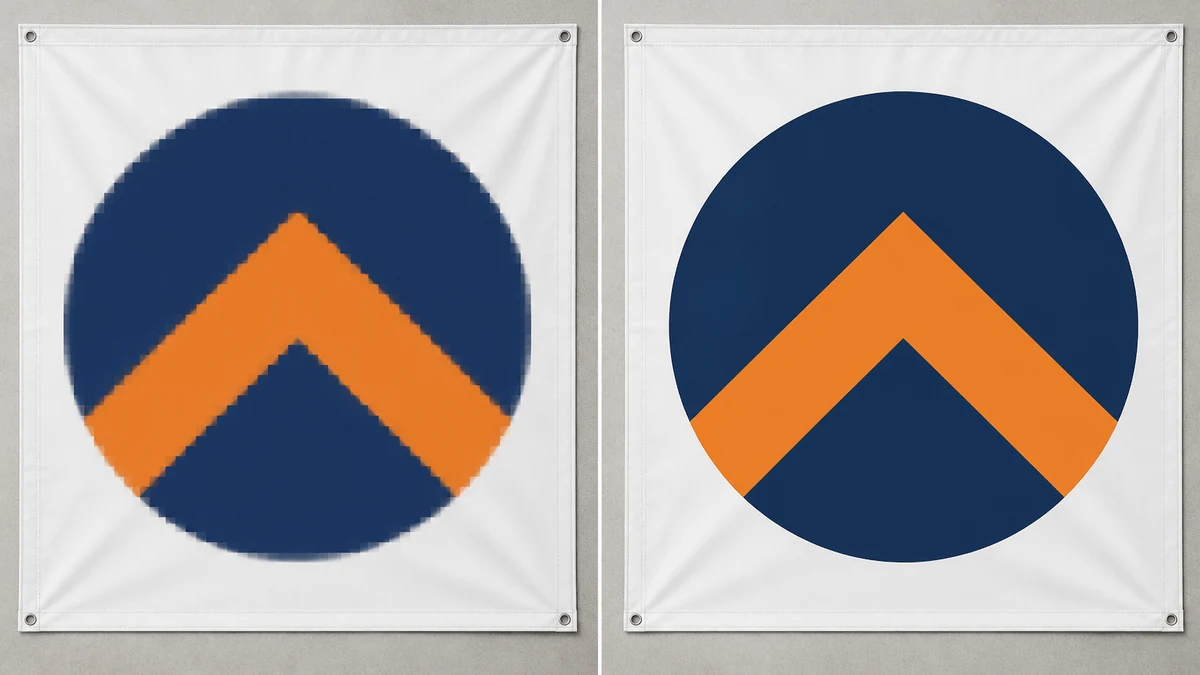
The call shape follows the same pattern as every other enhance_asset_proxy operation on this blog: pick the op that matches the actual flaw, pass the source imageUrl, preview the cost, then fire. For vectorize specifically that means passing the raster logo file and getting back a scalable vector output, no mask and no background prompt needed, since the job here is a format conversion rather than a repair to specific pixels.
A note on the image above: mcp.coinis.dev, the pipeline behind Ad Studio's live enhance_asset_proxy vectorize call, is mid-outage as this article went live. The before/after shown is an illustrative composite built to demonstrate the exact effect, not a captured output of that specific call. For a real, live enhance_asset_proxy render on this blog, see the photo-repair worked example. The real vectorize render will replace this illustration once the outage clears.
Why this compounds instead of staying a one-time fix
A blurry logo in one ad isn't a one-off cosmetic miss. It's a flaw that gets copied into every variant generate_image_templates produces across aspect ratios, and into every market revise_creative_resize localizes for. Fix the raster source once and the fix rides along into every size and every market automatically. Skip it, and the same soft wordmark shows up on the billboard-width banner, the tiny app-icon-sized logo slot, and the story placement, three separate visible flaws from one unfixed file.
This is the same reason the photo-repair step on a product shot matters more than another prompt trick: the input quality sets the ceiling on everything generated downstream. A logo is the one asset that appears in nearly every ad a brand ever runs, which makes it the single highest-leverage file to fix once and stop thinking about.
Building this into how you actually work
Before a logo file goes into any ad template, check it the same way you'd check a product photo: does it hold up at the smallest size it'll be used (a 128-pixel square logo slot) and the largest (a wide banner)? If the answer is no at either end, that's a vectorize job, not a problem to patch per-placement. Run it once against the source file, confirm the output holds sharp edges at a tiny size and a huge one, and then every template, every market, every future campaign pulls from a logo that doesn't need re-fixing.
That's the actual payoff of fixing a logo at the source instead of exporting a fresh raster file every time a new placement comes up: one vectorize pass, then Ad Studio's generation and resize pipeline carries a sharp logo into every format it ever produces, without anyone noticing it was ever a problem.
Run the vectorize fix on your own logo inside Ad Studio, then launch it straight into a template, every ad size pulls from the same crisp source file instead of a dozen separately-exported rasters.
FAQ
Does vectorizing a logo change how it looks, or just how it scales? Done correctly, a vectorize pass should preserve the logo's actual shapes and colors, it's a format conversion, not a redesign. The visible difference only shows up when the output gets resized: a vector holds its edges, a raster doesn't.
Can this fix a logo that was poorly designed to begin with, not just poorly exported? No. Vectorizing converts pixels into paths. It can't fix bad kerning, a muddy color choice, or a cluttered mark. If the logo itself has a design problem, that needs a redesign, not a format conversion. Vectorize solves the specific problem of a good logo breaking down at the wrong size.
Do I need to do this if my logo was already designed in vector software like Illustrator? No. If you still have the original vector file (an AI, EPS, or SVG), use that directly, it was never raster to begin with. This fix matters specifically when the only file anyone can find is a PNG or JPG export, which is the common case for small teams that lost or never had the original source file.
Sources
- Adobe, "Raster vs. Vector: What Are the Differences?" (URL: https://www.adobe.com/creativecloud/file-types/image/comparison/raster-vs-vector.html)
- Google Ads Help, "About image assets for Performance Max campaigns," 2026 (URL: https://support.google.com/google-ads/answer/14530211)
- Meta Business Help Center, "Recommended Minimum Image Pixel Requirements Across Placements," 2026 (URL: https://www.facebook.com/business/help/469767027114079)

Isidora Matovic
Author
Social media enthusiast and a full time researcher. She takes digital presence very seriously and that is why you are always in touch in what is going on with us! Follow us for more posts like this.